How-to guides / Saved batches
Saved batches
Every batch you save is kept here, newest first. Open one to see its production sheet again.
To save a batch, tap Save This Batch on Production Costs, Results or Piece Cost. See Costing and piece cost.
-
1
Open Saved Batches
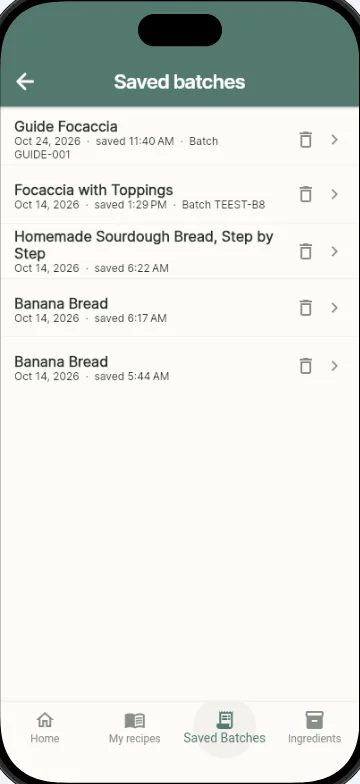
Tap Saved Batches in the bottom bar. The Saved Batches screen opens. Every batch you saved shows, newest at the top.
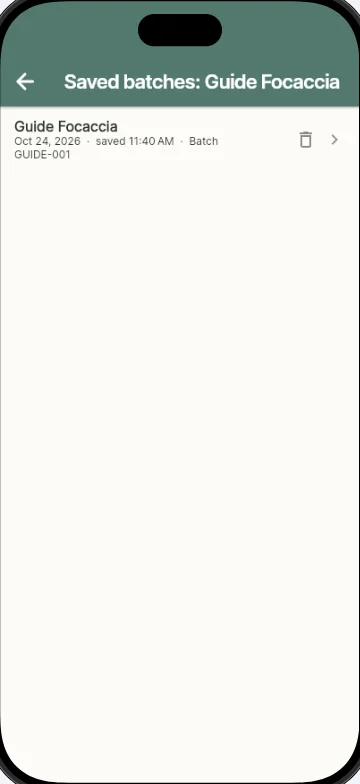
Each row shows the recipe name. Under it: the production date, the time it was saved, and the batch number, like Batch GUIDE-001.
Two batches made the same day? The saved time tells them apart.
No batches yet? It says No saved batches yet. Save one on Production Costs with Save This Batch.
-
2
See one recipe's batches
- Tap My Recipes in the bottom bar.
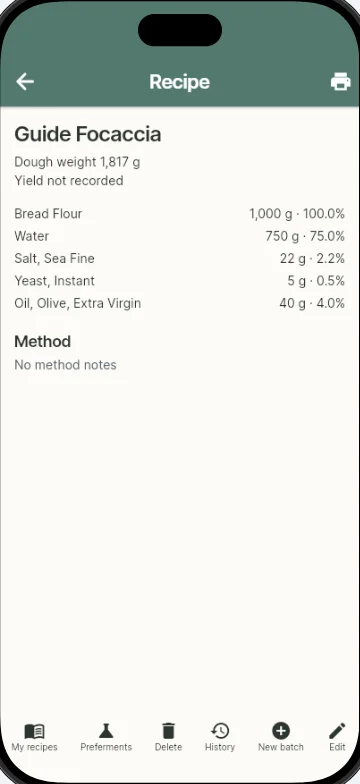
- Tap your recipe. The Recipe screen opens.
- Tap History in the row of buttons at the bottom.
-
3
Only that recipe
The screen is called Saved Batches: and the recipe name, like Saved Batches: Guide Focaccia.
Only that recipe's batches show.
-
4
Open a batch
Tap the batch. Its Production Sheet opens.
The batch keeps the weights and prices it was saved with. Changing a price later doesn't change it.
-
5
Delete a batch
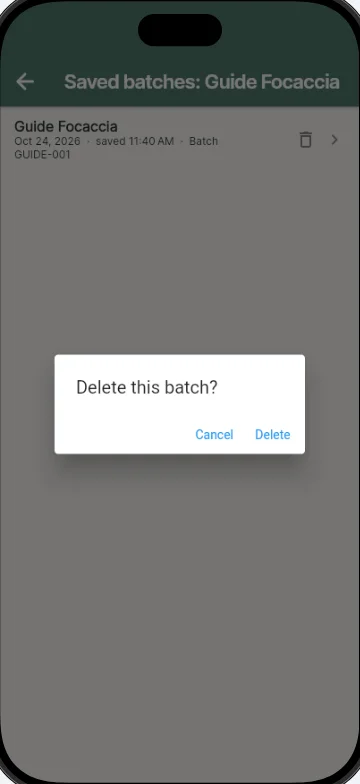
- Tap the bin on the batch's row.
- It asks Delete this batch? Tap Delete, or Cancel to keep it.
A deleted batch can't be brought back.
The Free plan keeps 3 saved batches. Saving a fourth says On the Free plan you can keep 3 saved batches. Upgrade to Pro, or delete an old batch to make room. Pro has no limit.