How-to guides / Costing and piece cost
Costing and piece cost
See what your batch costs, what each piece costs, and whether your price makes money. Then save the batch.
-
1
Check your costs on Production Costs
On Scale & Produce, tap Continue To Costing. Production Costs opens.
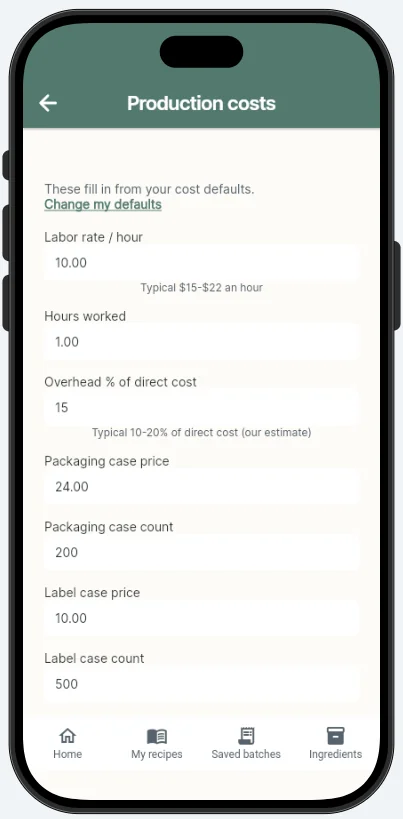
The boxes fill in from your cost defaults. Change any box and it changes this batch only.
- Labor rate / hour: what you pay for one hour of labor.
- Hours worked: hours of labor for this batch.
- Overhead % of direct cost: your overhead, as a percent of the batch's direct cost.
- Packaging case price and Packaging case count: what a case costs, and how many are in it.
- Label case price and Label case count: the same for labels.
- Utility cost / batch: gas, power and water for this batch.
- Target ingredient cost %: the share of your selling price you want ingredients to be. Suggested price is built from it, plus your other costs. It starts at 25 unless you've set your own.
Grey lines under some boxes help you. Typical shows a usual range. No labor cost until you fill this in means that box is empty.
Want different numbers every time? Tap Change My Defaults at the top. Change the boxes and tap Save Defaults. You come back to Production Costs with the new numbers.
-
2
See the batch cost
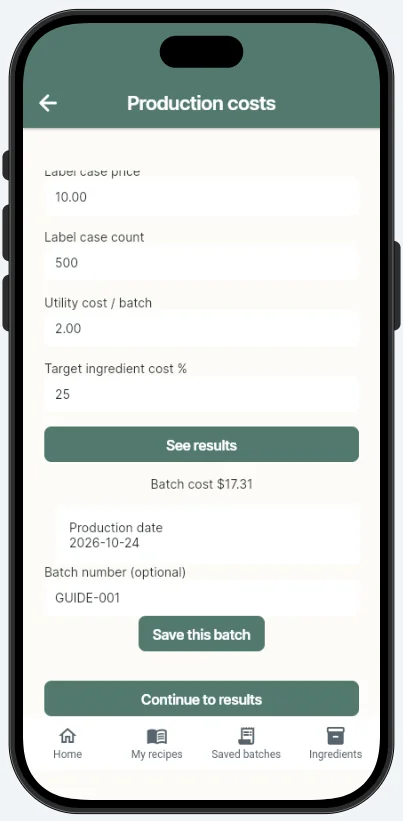
Scroll down and tap See Results. The batch cost shows under the button, like Batch cost $17.31.
Changed a box? Tap See Results again to update it.
See Couldn't work out the costs. Check your signal and tap See results again.? Check your signal and tap it again.
-
3
Date and batch number
Under the batch cost:
- Production date shows today. Tap it to pick another day.
- Batch number (optional): type your own code if you use one.
Both are saved with the batch.
Save This Batch is pale until you tap See Results. The line under it says Tap See Results first. Tap it here and the batch is saved and Saved Batches opens.
To see the full costs first, tap Continue To Results.
-
4
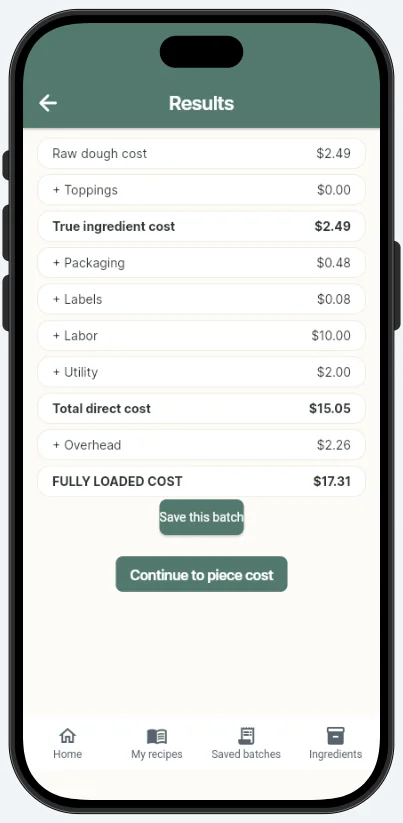
Read Results
Results lists the batch cost line by line:
Raw dough cost, + Toppings, True ingredient cost, + Packaging, + Labels, + Labor, + Utility, Total direct cost, + Overhead and FULLY LOADED COST.
Packaging and labels count one for every piece you make.
Save This Batch saves it here too. The button then says Saved.
Tap Continue To Piece Cost.
-
5
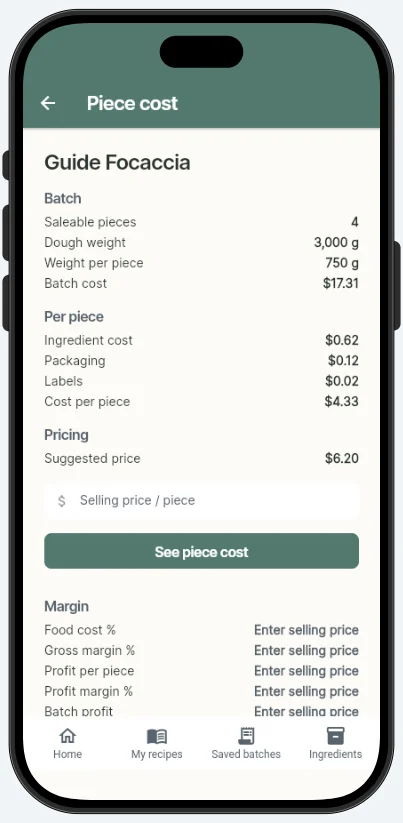
Read Piece Cost
Piece Cost opens with your recipe name at the top.
- Batch: Saleable pieces, Dough weight, Weight per piece and Batch cost.
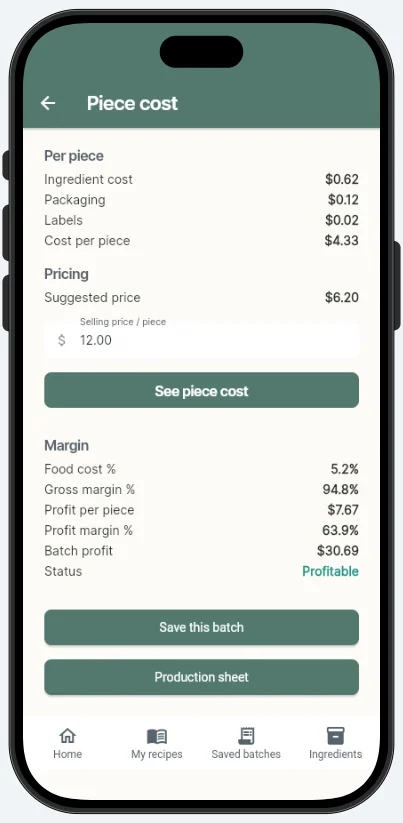
- Per piece: Ingredient cost, Packaging, Labels and Cost per piece, which is everything.
- Pricing: Suggested price, built from your Target ingredient cost %.
See No pieces to cost. Go back to Scale & Produce and check the batch size.? Tap back to Scale & Produce and fix the batch size.
-
6
Check your price, then save
- Type your price in Selling price / piece.
- Tap See Piece Cost.
Margin fills in: Food cost %, Gross margin %, Profit per piece, Profit margin %, Batch profit and Status. Status says Profitable in green or Below cost in red. Before you type a price, these lines say Enter selling price.
Checks lists anything to look at.
Tap Save This Batch. Batch saved. shows at the bottom. Or tap Production Sheet to save the batch and open its sheet. That's guide 7.
Save on Piece Cost to keep your selling price with the batch. A batch saves once. Save it again and you'll see This batch is already saved.
See Fix the red line in Checks before saving.? Fix the line marked red in Checks, then save.