How-to guides / Read a receipt
Read a receipt
Take a photo of a supplier receipt. The app reads every line and price. You match each line to an ingredient, and its price is updated.
-
1
Open Read A Receipt
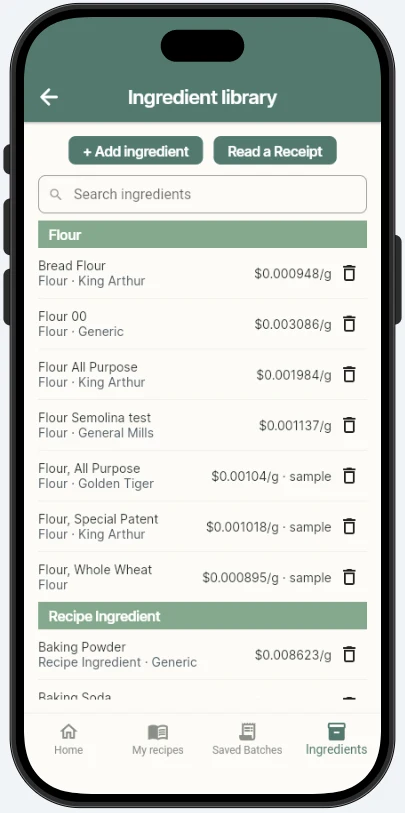
- Tap Ingredients in the bottom bar. The Ingredient Library opens.
- Tap Read A Receipt at the top, next to + Add Ingredient.
-
2
Read the receipt
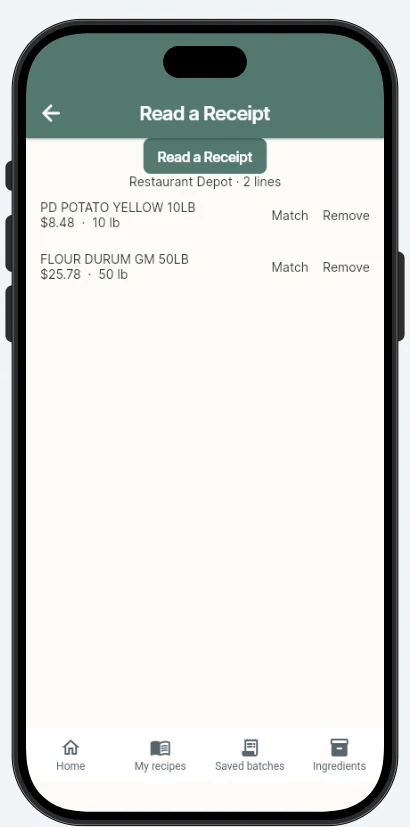
- Tap the green Read A Receipt button at the top of the screen.
- Pick Camera to take a photo, or Gallery for one you already have.
Each read uses one receipt read. Free gives you 3. Pro gives you 50 every 30 days. On Free, the reads you have left show under the green button.
It says Reading the receipt... for a few seconds. Stay on the screen until it's done. Then every line shows with its price and size. Above them is the store name and how many lines, like Restaurant Depot · 12 lines.
Tax, totals, discounts and fees are left out.
No lines? It says Couldn't read this receipt. Try a clearer photo in good light. A receipt with no prices on it doesn't use a read.
Lay the receipt flat, in good light, with the whole thing in the photo.
-
3
Match a line to your ingredient
- Tap Match on the line.
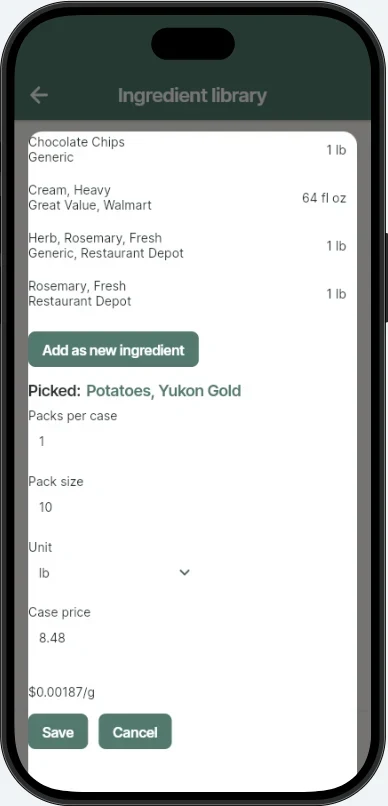
- Under Pick the ingredient, tap yours. Closest matches are at the top. Your full list is below them.
- Scroll down. Picked: shows the ingredient you tapped.
- Check Packs per case, Pack size, Unit and Case price. Case price is filled from the receipt.
- Tap Save. Price updated. shows, and the line leaves the list.
Batches you cost from now on use the new price. Saved batches keep the price they were saved with.
If the receipt's size doesn't match your ingredient, a red line says so. Change the boxes to the receipt's figures, or pick a different ingredient. Nothing is saved until they agree.
Sold by volume, like oil? Fill in Net weight on the label too.
-
4
Something new? Add it
If the item isn't in your list, tap Match, then Add As New Ingredient.
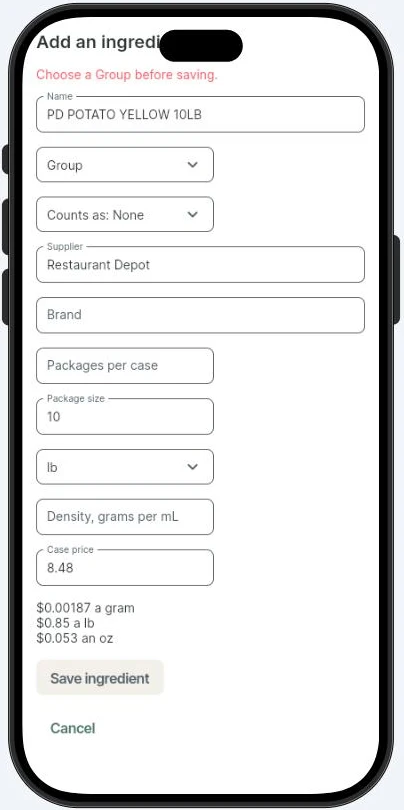
The Add an ingredient form opens with the receipt's name, price and size. Supplier is the store name.
- Change the name to one you'll know, like Bread Flour.
- Pick its Group: Flour, Recipe Ingredient, Topping/Add-In or Recipe + Topping. Until you do, it says Choose a Group before saving.
- Tap Save Ingredient. The line leaves the list.
Sold by volume, like oil or syrup (mL, L, fl oz, qt or gal)? Leave Net weight on the label empty and Dough123 uses the USDA weight list. A grey line under the price says Weight from USDA list: and the item it used. Not on the list? It says No price yet - not on our weight list. Type the Net weight on the label to price it. A weight you type always wins.
Sold as one item, like a #10 can? Pick each as the Unit. Words like #10 can in Package size count as 1.
-
5
Remove lines you don't need
Coffee, lids, cleaning supplies? Tap Remove on the line. It asks Remove this line? Tap Remove.
Nothing in your ingredients changes.
-
6
Finish later
You don't have to match every line now. Lines you leave wait on the Ingredients screen under Receipt lines to match. Tap Match or Remove there any time.
Reading the same receipt again won't list a waiting line twice. It does use another read.
A line with exactly the same name as one of your ingredients matches by itself. It shows your ingredient with a tick and a green Save Price button. Tap it to save the price.
A bag, case or sack with no weight on the receipt asks for its weight. Type the Amount, pick the Unit, then tap Match.