How-to guides / Scale and produce
Scale and produce
Tell Dough123 how big a batch you need. Scale by the dough weight you want, or by the order you have to fill.
-
1
Open Scale & Produce
There are two ways in:
- On Recipe Checks, tap Continue To Scaling.
- Or tap My Recipes in the bottom bar. Tap your recipe. On the Recipe screen, tap New Batch in the row of buttons at the bottom.
The Scale & Produce screen opens with your recipe name at the top. Under it are two choices: By Dough Weight and By Order.
See This recipe is not finished yet. Tap Edit and finish it first.? Tap Edit on the Recipe screen and finish the recipe first.
-
2
Scale by dough weight
Use this when you know how much dough you want to mix.
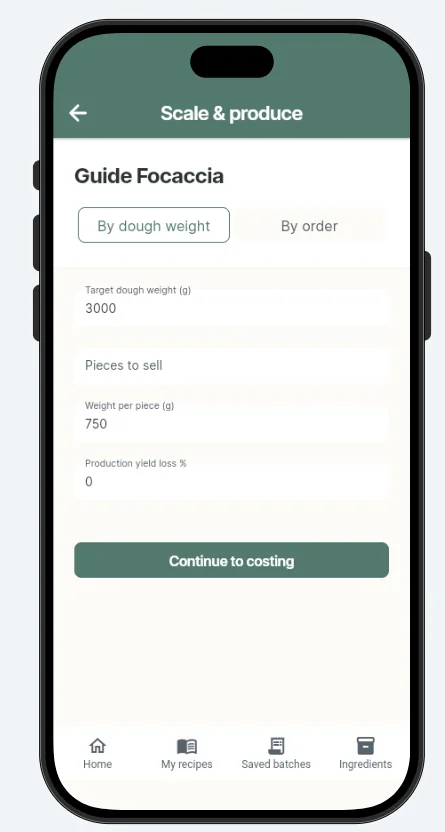
- Tap By Dough Weight.
- Type the dough you want in Target dough weight (g).
- Type your piece size in Weight per piece (g). Or, if you know how many you want to sell, type that in Pieces to sell instead.
Example: 3000 g of dough at 750 g a piece makes 4 pieces.
Filled in both Weight per piece (g) and Pieces to sell? The piece weight wins. Leave Target dough weight (g) empty and fill both, and the app works out the dough for you.
-
3
Scale by order
Use this when you have an order to fill. The app works out the dough.
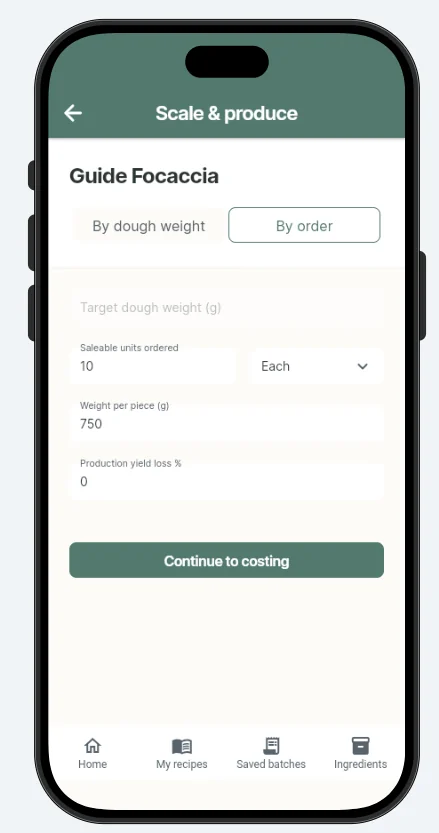
- Tap By Order. Target dough weight (g) goes pale. You don't need it.
- Type how many in Saleable units ordered.
- Pick the unit in the box next to it: Each, Dozen, Half Dozen, Score (20) or Gross (144).
- Type your piece size in Weight per piece (g).
Example: 10 Each at 750 g a piece.
-
4
Allow for loss
Production yield loss % is what you expect to lose while you make the batch. Dough left in the bowl and on the bench. Pieces dropped, misshapen, burnt or tasted.
If you lose about 1 piece in 10, type 10. Leave it empty if you don't plan for any loss.
- By Order: the app makes extra, so you still have the full order to sell.
- By Dough Weight: the dough stays the same, so you get fewer pieces to sell.
It must be under 100%.
-
5
Continue To Costing
If your recipe has preferments, they're listed under Preferments above the button.
Tap Continue To Costing. Recipe scaled. Now add your costs. shows at the bottom and Production Costs opens. That's the next guide.
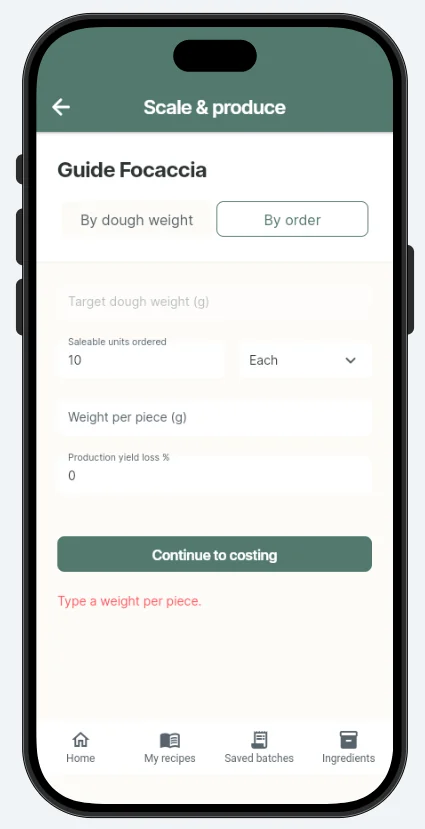
If something is missing, a red line shows under the button and you stay on the screen:
- Type a target dough weight.
- Type a weight per piece or pieces to sell.
- Type how many units are ordered.
- Type a weight per piece.
- Production yield loss must be under 100%.
- This batch makes no whole pieces. Raise the dough weight or lower the weight per piece.
Fix the box it names and tap Continue To Costing again.
Nothing is saved on this screen. Tapping Home, My Recipes, Saved Batches or Ingredients in the bottom bar asks Leave this batch? Tap Stay to keep going, or Leave to drop it.