How-to guides / Preferments
Preferments
Tell Dough123 if your recipe uses a starter, a poolish or sponge, or a biga. It works out the flour and water each one takes out of the final dough.
-
1
Open Preferment Configuration
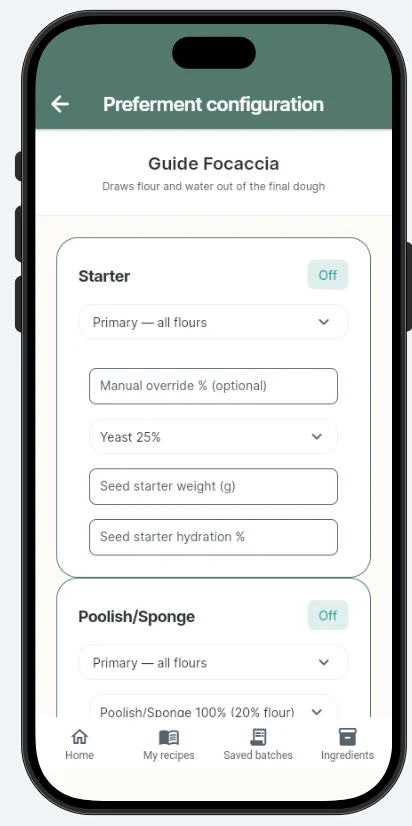
On Recipe Checks, tap Continue To Preferments. The Preferment Configuration screen opens with your recipe name at the top.
There is one card for each kind: Starter, Poolish/Sponge and Biga. They all start Off.
No preferment in this recipe? Scroll to the bottom and tap Skip — No Preferments.
-
2
Set up a poolish, sponge or biga
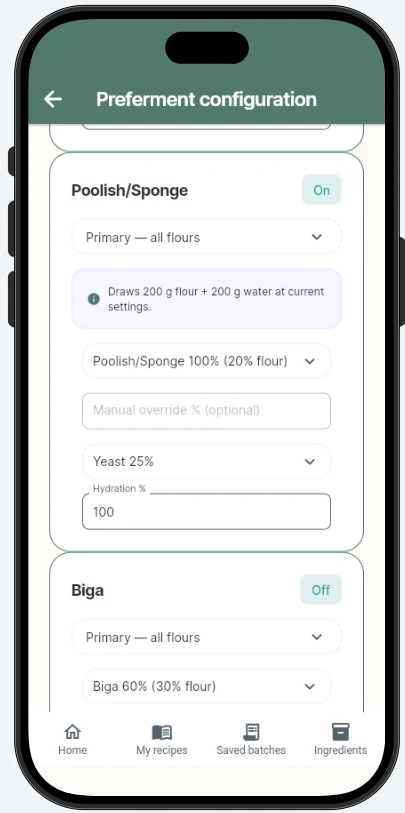
- On the card, tap Off. It changes to On.
- In the top box, pick the flour it uses. Primary — all flours takes from all the recipe's flour. Or pick one of your flours.
- In the type box, pick your build. Example: Poolish/Sponge 100% (20% flour) means 100% hydration, using 20% of the recipe's flour.
- Pick Yeast %: the share of the recipe's yeast that goes into the preferment. Choose 10, 15, 20 or 25.
The blue line shows what it takes, like Draws 200 g flour + 200 g water at current settings.
Poolish/Sponge also has a Hydration % box, set to 100. Change it if yours is wetter or stiffer.
-
3
Use your own percentage
Your build isn't in the list? Type the percentage of flour in Manual override % (optional).
If the type box and the override are both filled, the card says Type and Manual override are both filled. Pick one. Tap Use Type or Use Override.
-
4
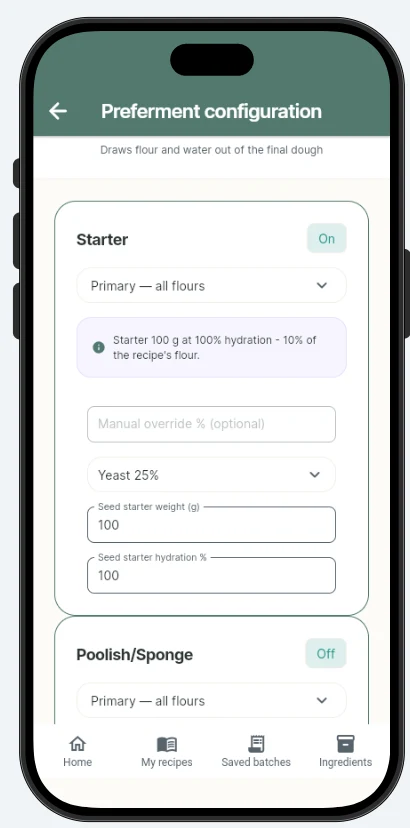
Set up a starter
- On the Starter card, tap Off. It changes to On.
- Type your starter's weight in Seed starter weight (g).
- Type its hydration in Seed starter hydration %.
The blue line shows the starter against your flour, like Starter 100 g at 100% hydration - 10% of the recipe's flour.
-
5
Check the final dough, then save
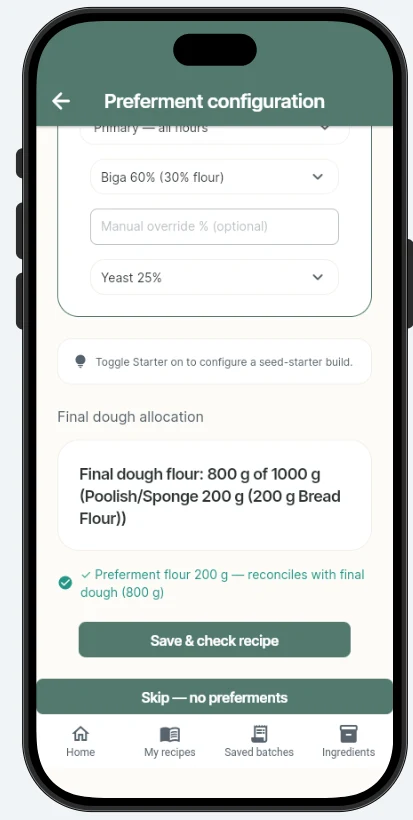
Scroll down to Final dough allocation. It shows the flour left for the final dough, like Final dough flour: 800 g of 1000 g.
- A green tick line says the flour adds up.
- A ⚠ line means the preferments take more flour than the recipe has. Lower a percentage.
- Two preferments on the same flour? You'll see a warning and a Flour used twice box. Tick it if you meant it. It saves right away.
Tap Save & Check Recipe. Recipe Checks opens again. Its button now says Continue To Scaling, which is the next guide.
Already typed your preferment into the recipe, like "Poolish 400 g"? That card fills in from the line and some boxes go pale. Type its Hydration % so the flour and water split shows.
Not making a batch today? Tap Save To My Recipes under Continue To Scaling. Recipe saved. shows at the bottom and My Recipes opens.