
How-to guides / Delete my account
Delete my account
What deleting erases, what to do first if you pay for Pro, and how to do it.
-
1
Pay for Pro? Cancel it first
Deleting your account does not stop Pro billing. The App Store or Google Play keeps charging until you cancel.
- Tap the person icon at the top of Home. Account opens.
- Under Your plan, tap Manage Subscription.
- Cancel Pro in the App Store or Google Play.
On Free? Skip this step.
-
2
Tap Delete My Account
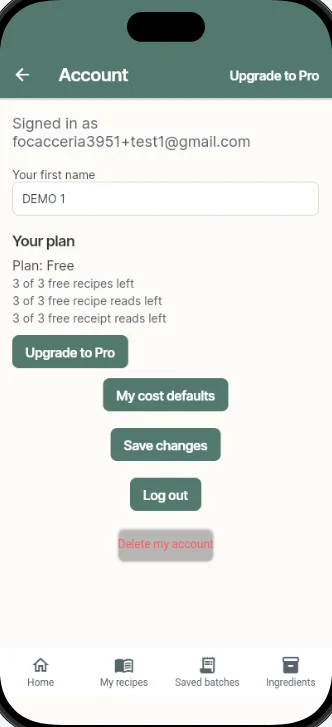
On Account, look at the bottom, under Log Out.
Tap Delete My Account in red letters. A box opens. Nothing is deleted yet.
-
3
Read what it erases
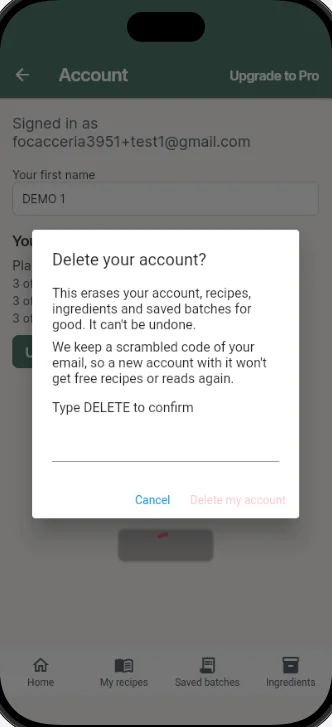
The box says Delete your account?
- It erases your account, recipes, ingredients and saved batches for good. It can't be undone.
- We keep a scrambled code of your email. A new account with the same email won't get free recipes or reads again.
If you pay for Pro through the store, the box also says You have Pro. Deleting does not stop Pro billing. Cancel Pro first. Tap Cancel Pro to open your subscriptions.
Changed your mind? Tap Cancel. Nothing is deleted.
-
4
Type DELETE
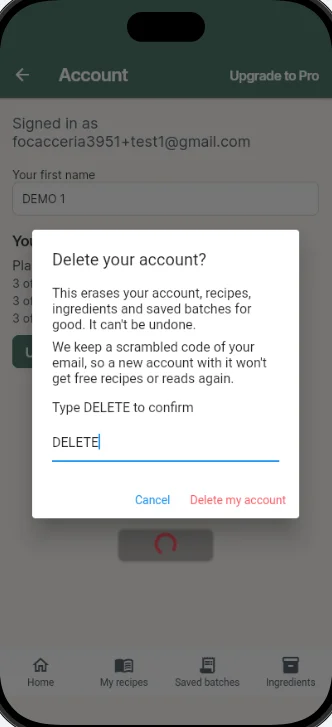
Tap the line under Type DELETE to confirm. Type DELETE.
Delete My Account, bottom right of the box, turns from pale to red.
Tap it. This deletes your account for good.
-
5
After you delete
The app goes back to Log In and says Your account has been deleted.
The message closes when you move on, or tap the X.
If it says Couldn't delete your account. Check your signal and try again., check your signal and do steps 2 to 4 again.